Contracts
Overview
Contracts let you formalise agreements with your clients directly through DreamPlan. You create a contract with a title and body text, link it to a quote if desired, and send it for e-signature. Clients can review and sign contracts on a public page without needing a DreamPlan account. Signed contracts are stored in your portal for reference.
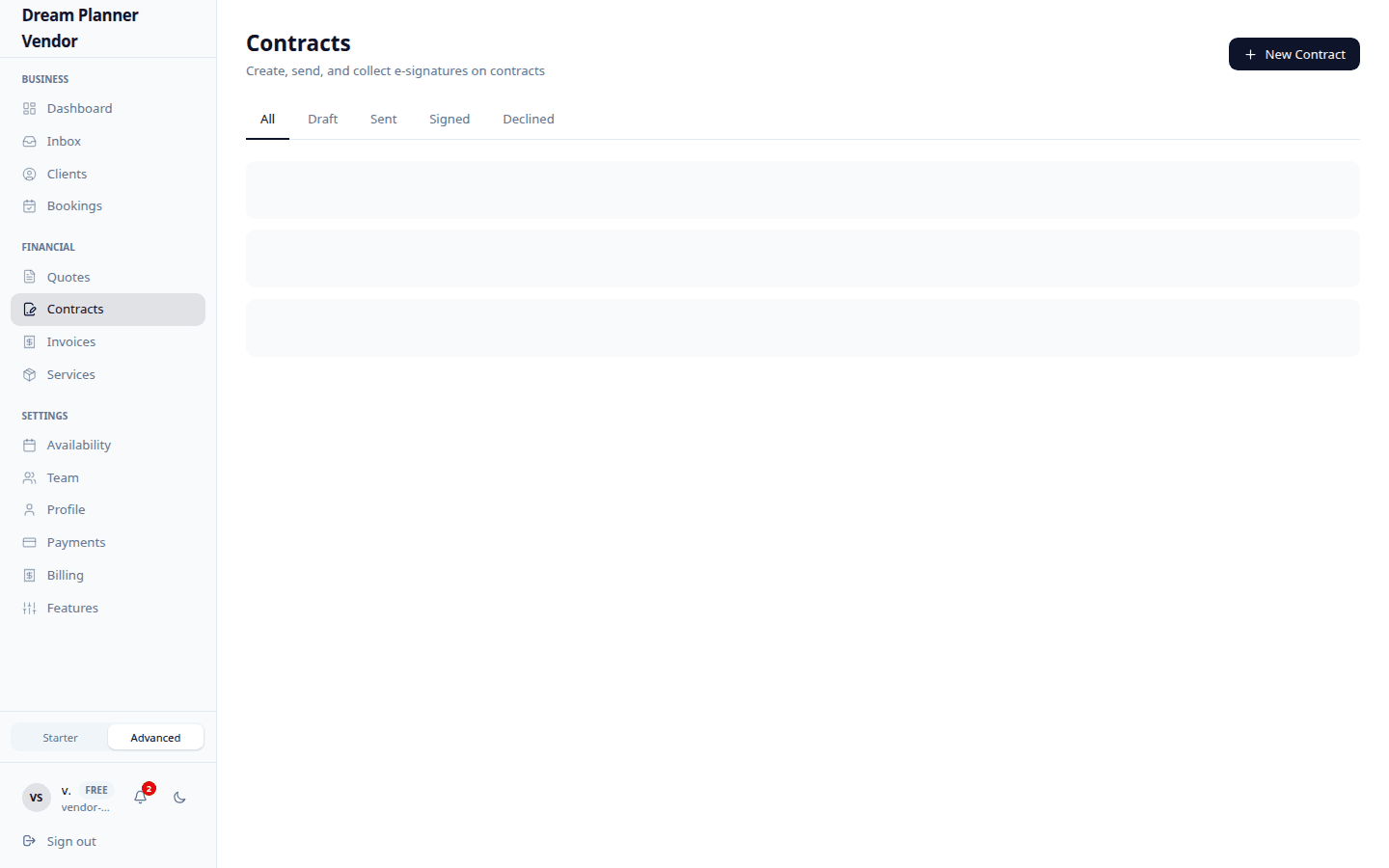 The contracts list showing draft, sent, and signed agreements.
Creating a Contract
- Navigate to Contracts from the sidebar and click New Contract.
- Enter the title — a short, descriptive name for the contract (e.g. “Wedding Photography Agreement — Smith/Jones 2026”).
- Write the body text. This is the full content of your contract, including terms, conditions, deliverables, pricing, cancellation policy, and any other clauses.
- Click Save as Draft.
Tip: Keep a standard contract template saved outside DreamPlan that you can copy and paste for each new client, then customise the specific details like names, dates, and pricing.
Linking Contracts to Quotes
You can link a contract to a quote so the client sees both documents together when reviewing your proposal.
- Open the contract or the quote you want to link.
- Click Link Contract (from the quote) or Link to Quote (from the contract).
- Select the corresponding document.
- Save.
When a client views the quote via their token link, the linked contract is also displayed. This allows the client to review terms and sign the contract in the same session as accepting the quote.
Sending a Contract for E-Signature
- Open the contract.
- Review the title and body for accuracy.
- Click Send for Signature.
- The client receives an email with a link to the signing page.
- The contract status changes from Draft to Sent.
Client Signing Flow
When the client clicks the link in their email, they are taken to a public signing page. The process is straightforward:
- Review — The client reads the full contract text on the page.
- Draw signature — The client uses a signature canvas to draw their signature using a mouse, trackpad, or touchscreen.
- Enter name — The client types their full legal name as confirmation.
- Submit — The client clicks the submit button to sign the contract.
Once signed, both you and the client receive a confirmation. The signed contract is stored in your DreamPlan portal with the signature and timestamp.
The client does not need a DreamPlan account to sign. The link is private and unique to that contract.
Contract Statuses
| Status | Meaning |
|---|---|
| Draft | The contract has been created but not sent. You can still edit it. |
| Sent | The contract has been sent to the client for signature. |
| Signed | The client has signed the contract. |
| Declined | The client has declined to sign the contract. |
Viewing All Contracts
Go to Contracts in the sidebar to see a list of all your contracts. You can filter by status to quickly find drafts, pending signatures, signed agreements, or declined contracts.
Each contract entry shows the title, client name, linked quote (if any), status, and the date it was created or signed.
Tips
Tip: Always link your contract to the relevant quote. This gives the client a complete picture of pricing and terms in one place.
Tip: Send contracts before the event date is too close. Clients are more likely to sign promptly when there is no time pressure.
Tip: Include clear cancellation and refund terms in every contract. This protects both you and the client.
Tip: Review the contract body carefully before sending. Once sent, the contract cannot be edited.
Future Enhancements
DreamPlan plans to integrate with DocuSign in a future release for vendors who require advanced e-signature features such as multiple signatories, audit trails, and compliance with additional legal frameworks. The current built-in signing flow covers the needs of most wedding and event vendors.
FAQ
Can I edit a contract after sending it? No. Once a contract is sent for signature, it is locked. If changes are needed, create a new contract.
Does the client need a DreamPlan account to sign? No. The client signs via a secure public link and does not need to create an account.
Is the e-signature legally binding? The e-signature captures the client’s drawn signature, typed name, and a timestamp. While this provides a strong record of agreement, consult with a legal professional in your jurisdiction for specific legal advice.
Can I have multiple contracts for the same client? Yes. You can create as many contracts as needed for a client, each covering different aspects of your service agreement.
What happens when a client declines a contract? The contract status changes to Declined. You receive a notification. You can create a revised contract and send it again if the client is open to negotiation.
Can I link one contract to multiple quotes? A contract is linked to a single quote. If you need the same terms for multiple quotes, create separate contracts for each.