Onboarding
When you first sign up for DreamPlan, the onboarding flow helps you get comfortable with the platform and set up your first event quickly. This guide explains every step of the process.
Overview
DreamPlan’s onboarding has three parts: a Welcome Modal that introduces the platform, a Getting Started Checklist that guides you through your first tasks, and a Feature Mode system that lets you control how much of the platform you see. Together, these ensure you are never overwhelmed on day one.
Welcome Modal
The first time you log in to the planner portal, a three-slide welcome modal appears.
| Slide | What It Covers |
|---|---|
| Slide 1 — Welcome | A brief introduction to DreamPlan and what the platform can do for you. |
| Slide 2 — How It Works | An overview of the key areas: events, guests, budget, vendors, and checklist. |
| Slide 3 — Get Started | A prompt to create your first event or explore the dashboard. |
Click Next to move through the slides, or Skip to close the modal and jump straight in.
Tip: If you dismiss the modal accidentally, you can replay it from Settings > Help > Replay Welcome Tour.
Getting Started Checklist
After the welcome modal, your dashboard displays a Getting Started checklist. This is a set of milestones designed to walk you through the core features one by one.
Milestones
The checklist includes tasks such as:
- Create your first event — set up an event using the wizard or quick start.
- Add your first guest — enter a guest manually or import a CSV.
- Set your budget — add at least one budget line item.
- Add a checklist task — create a to-do item for your event.
- Browse vendors — visit the vendor directory and shortlist a vendor.
- Customise your experience — choose Focused or Advanced mode.
Each milestone has a checkbox. When you complete a milestone, a confetti animation plays to celebrate your progress.
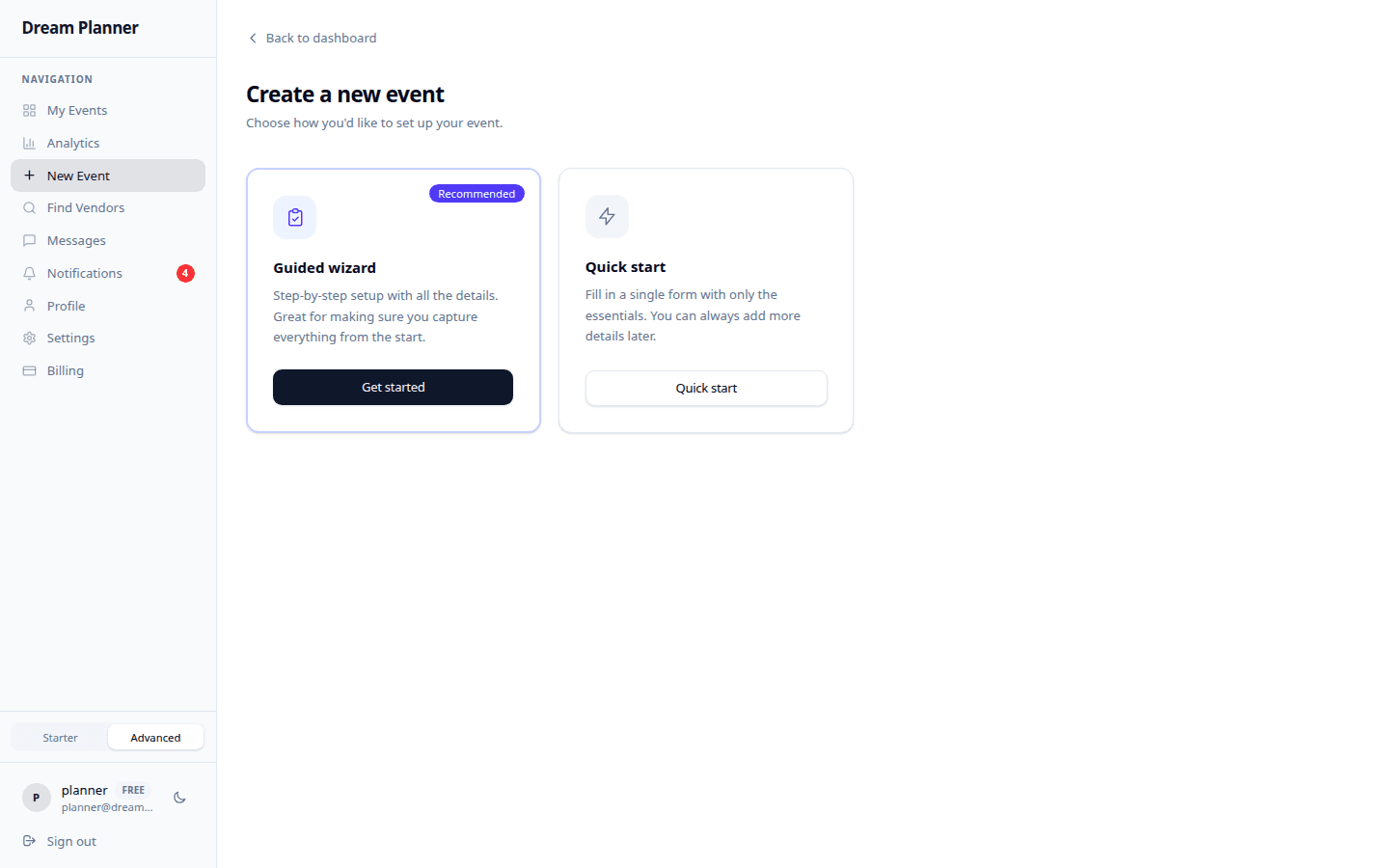 The Getting Started checklist with milestone progress tracking.
How Milestones Work
- Milestones are completed automatically when you perform the action (for example, adding a guest checks off the “Add your first guest” milestone).
- You can also manually check off a milestone if you want to skip it.
- Once all milestones are complete, the Getting Started checklist disappears from your dashboard.
Tip: Do not rush through the milestones — they are designed to help you discover features you might otherwise miss.
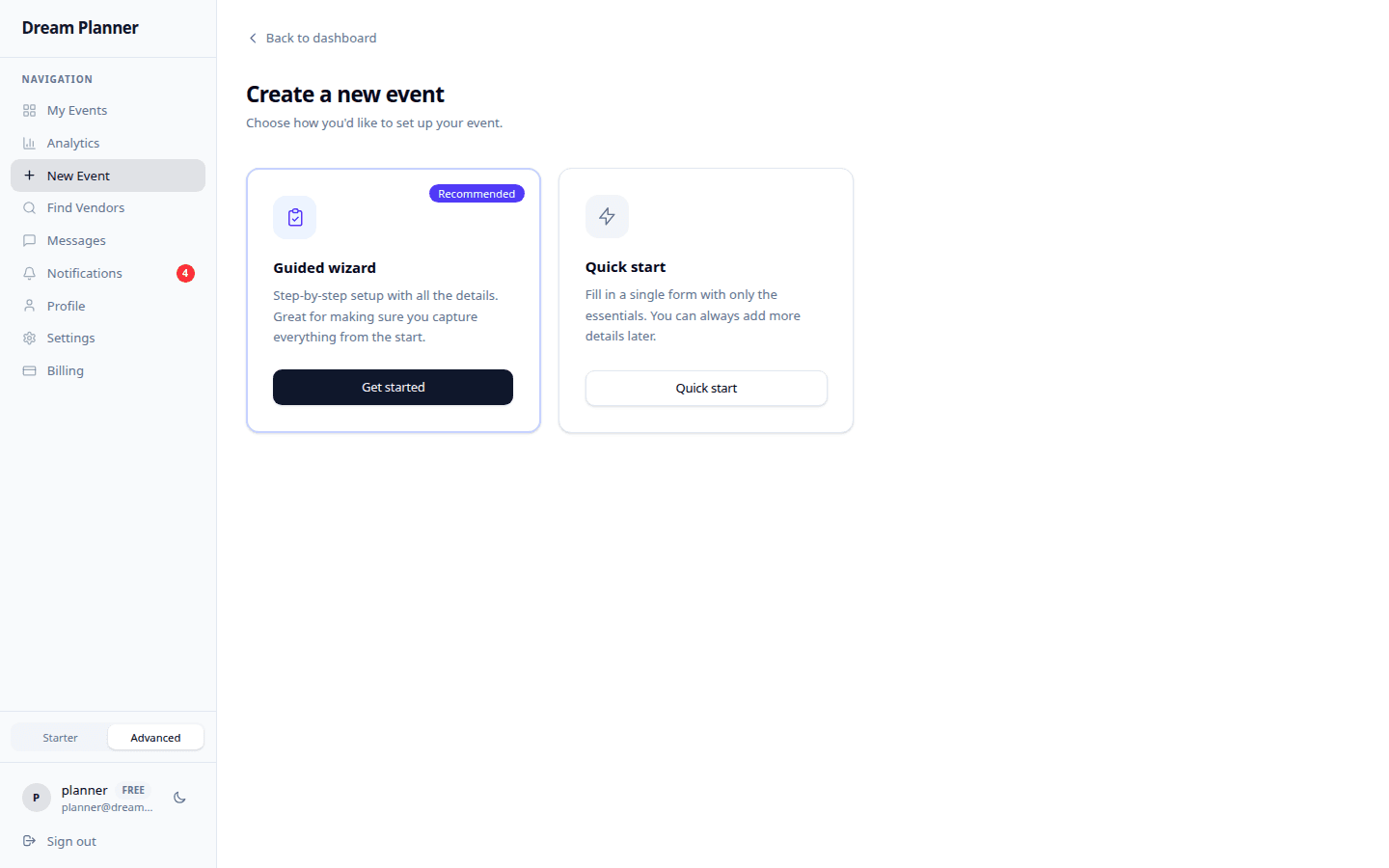 The event dashboard after completing onboarding milestones.
Focused vs Advanced Mode
DreamPlan has two experience modes that control how many features are visible in the interface.
| Mode | What You See |
|---|---|
| Focused | A streamlined interface showing only the essentials: events, guests, budget, checklist, and vendors. Ideal for personal planners who want simplicity. |
| Advanced | The full platform with every feature enabled: team collaboration, communications, schedule, analytics, documents, QR check-in, and more. Ideal for professional planners or complex events. |
Switching Between Modes
- Click your profile avatar in the top-right corner.
- Select Settings.
- Under Experience, choose Focused or Advanced.
- Click Save.
The interface updates immediately. No data is lost when switching — features are hidden, not deleted.
Individual Feature Toggles
Beyond the two main modes, you can enable or disable specific features independently. This lets you build a custom experience that suits your exact needs.
| Feature Toggle | What It Controls |
|---|---|
| Budget | The budget tracker, spending charts, and over-budget alerts. |
| Team Collaboration | Invite collaborators, assign tasks, shared editing. |
| Communications | In-app messaging with vendors and guests. |
| Schedule | Day-of timeline and schedule management. |
| Analytics | Dashboard charts, progress reports, and data exports. |
| Documents | File uploads, contract storage, and document linking. |
| QR Check-in | QR code generation for guests and the check-in dashboard. |
How to Toggle Features
- Go to Settings > Features.
- You will see a list of toggleable features, each with an on/off switch.
- Flip the switch for any feature you want to enable or disable.
- Changes take effect immediately.
Tip: Start in Focused mode and turn on individual features as you need them. This keeps the interface clean while giving you access to powerful tools when the time comes.
Tips
- Complete the Getting Started checklist — it only takes a few minutes and ensures you know where everything is.
- Start with Focused mode if you are planning a small personal event. You can always switch to Advanced later.
- Use individual toggles to add just the features you need without turning on everything at once.
- Re-watch the welcome tour from Settings if you need a refresher after some time away from the platform.
FAQ
Can I skip the onboarding entirely? Yes. Close the welcome modal and dismiss the Getting Started checklist. You can always access the checklist again from Settings > Help.
Does switching from Advanced to Focused delete my data? No. Switching modes only hides features from the interface. All your data remains intact and reappears when you switch back or re-enable the feature.
Can different collaborators on the same event use different modes? Yes. Feature modes and toggles are per-user settings, not per-event. Each person sees the interface they have configured for themselves.
What happens if I disable a feature that has data in it? The data is preserved. For example, if you disable the Documents toggle, your uploaded files are still stored. Re-enable the toggle and they reappear exactly as you left them.
Is there a way to reset my onboarding progress? Go to Settings > Help > Reset Onboarding to restart the Getting Started checklist from scratch.