Vendor Management
Finding the right vendors and managing your bookings is a huge part of event planning. DreamPlan gives you a vendor directory to browse and compare, a shortlisting system to save your favourites, and a booking workflow that tracks every vendor from first enquiry to final confirmation.
Overview
The vendor management section lets you search a directory of vendors, filter by category and budget, compare up to four vendors side-by-side, shortlist your favourites, add vendors to your event, and manage the booking lifecycle from enquiry through to confirmation. A permission matrix controls what data vendors can access about your event.
Browsing the Vendor Directory
- Open your event and navigate to the Vendors tab.
- Click Browse Directory to see all available vendors.
- Scroll through the directory or use search and filters to narrow results.
Each vendor appears as a profile card showing key information at a glance.
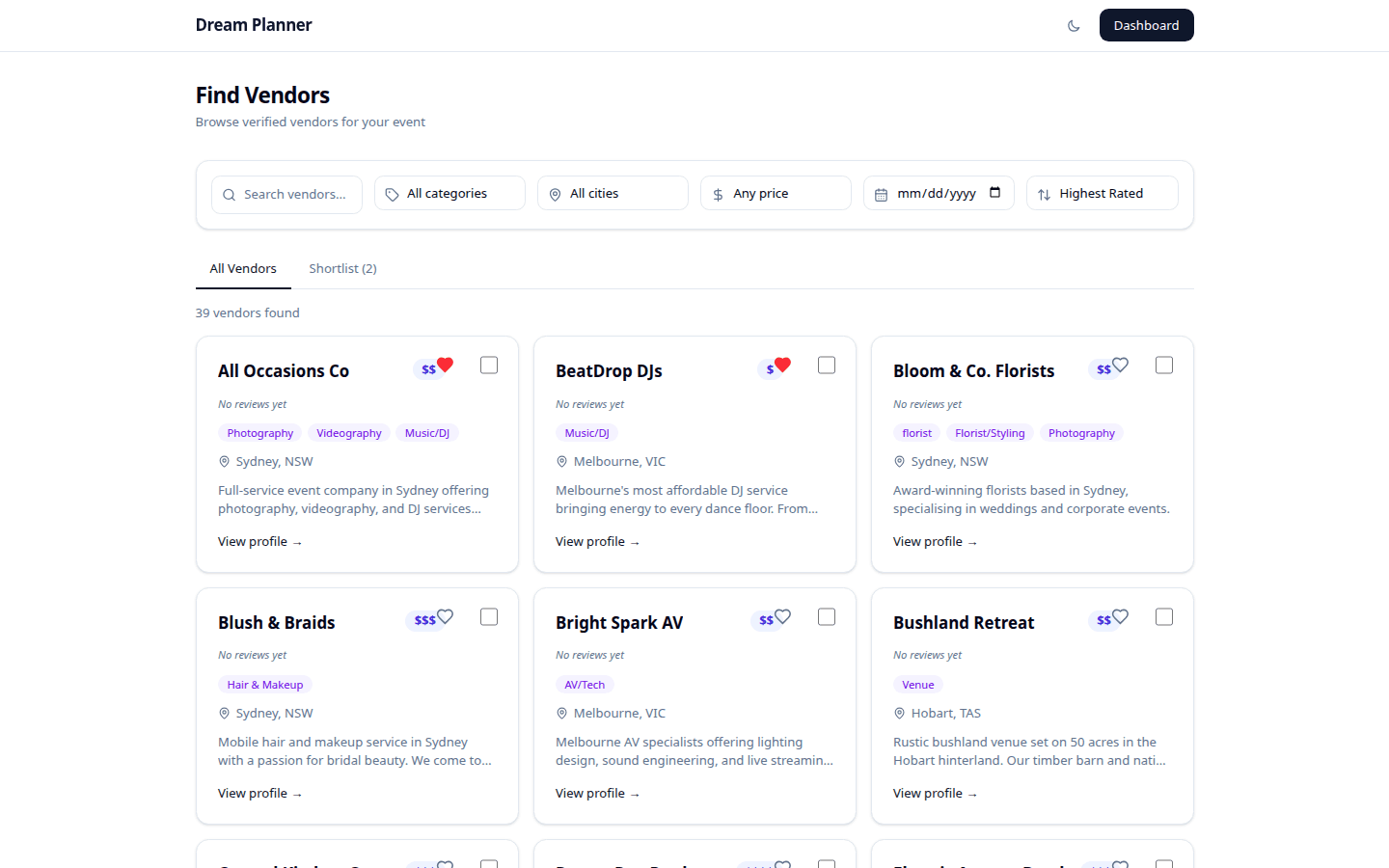 The vendor directory with profile cards, filters, and search.
Vendor Profile Cards
| Field | Description |
|---|---|
| Vendor Name | The business name. |
| Category | The type of service (see categories below). |
| Price Range | Shown as $, $$, $$$, or $$$$ to indicate budget level. |
| Rating | Average rating from past event planners. |
| Response Time | Typical time to respond to enquiries. |
| Top Rated Badge | A badge displayed on vendors with consistently high ratings. |
Vendor Categories
| Category | Services |
|---|---|
| Photographer | Event photography, portraits, albums |
| Videographer | Event videography, highlight reels, live streaming |
| Florist | Bouquets, table arrangements, venue floristry |
| Caterer | Food, drink, waiting staff |
| DJ / Band | Music, entertainment, sound equipment |
| Venue | Event spaces, marquees, outdoor sites |
| Cake | Wedding cakes, celebration cakes, dessert tables |
| Decor | Lighting, drapery, table styling, props |
| Planner | Day-of coordination, full planning services |
| Celebrant / Officiant | Ceremony leaders, registrars |
Search and Filter
Use the toolbar above the directory to refine your search:
- Search — type a vendor name or keyword.
- Category — filter by one or more vendor categories.
- Location — filter by area or distance from your event.
- Price Range — filter by $, $$, $$$, or $$$$.
- Availability — filter to show only vendors available on your event date.
Tip: Combine filters for the best results — for example, “Photographer” + ”$$” + “Available on 15 June” narrows the list quickly.
Shortlisting Vendors
When you find a vendor you like, shortlist them for easy reference later.
- Click the heart icon on the vendor’s profile card.
- The vendor is saved to your Shortlist, accessible from the Vendors tab.
To remove a vendor from your shortlist, click the heart icon again to toggle it off.
Your shortlist is private — vendors do not know they have been shortlisted.
Comparing Vendors
Compare up to four vendors side-by-side to help you decide.
- Select vendors by clicking the Compare checkbox on each profile card (up to 4).
- Click the Compare button in the toolbar.
- A comparison view opens showing all selected vendors with their details in columns:
- Price range
- Rating
- Response time
- Services offered
- Availability
- Reviews summary
This makes it easy to weigh your options without switching back and forth between profiles.
Adding a Vendor to Your Event
Once you have chosen a vendor:
- Click Add to Event on the vendor’s profile card or from the comparison view.
- The vendor is added to your event with a status of Enquired.
You can also add a vendor who is not in the directory by clicking + Add Custom Vendor and entering their details manually.
Vendor Status Flow
Each vendor added to your event goes through a defined status workflow:
| Status | Meaning |
|---|---|
| Enquired | You have reached out to the vendor. Waiting for a response. |
| Quoted | The vendor has provided a quote. You are reviewing it. |
| Confirmed | You have accepted the quote and the vendor is booked. |
| Cancelled | The booking has been cancelled by either party. |
| Expired | The enquiry or quote expired without action. |
Updating Vendor Status
- Open the vendor’s entry in your event’s vendor list.
- Click the current status badge.
- Select the new status from the dropdown.
- Add any notes (for example, quote amount or cancellation reason).
- Click Save.
The status flow is linear but flexible — you can move backwards if needed (for example, from Quoted back to Enquired if the vendor revises their offer).
 The vendor booking lifecycle from Enquired through to Confirmed.
Sending Enquiries
- Click Send Enquiry on the vendor’s profile or from your event’s vendor list.
- A message form opens with your event details pre-filled (date, type, location, guest count).
- Add any custom notes or questions.
- Click Send.
The vendor receives your enquiry and can respond through the DreamPlan platform. The vendor’s status in your event updates to Enquired automatically.
Permission Matrix for Vendor Data Access
Vendors added to your event can see certain information to help them deliver their service. Here is what vendors can and cannot access:
| Data | Vendor Can See? |
|---|---|
| Event date and location | Yes |
| Guest count | Yes |
| Dietary summary (counts) | Yes |
| Individual guest names | No (unless shared via seating plan) |
| Budget details | No |
| Other vendors on the event | No |
| Checklist tasks | No |
| Seating plan (if shared) | Yes (read-only) |
| Documents (if shared) | Yes (read-only) |
Tip: You control what vendors see. Share the seating plan or documents with specific vendors only when they need the information.
Tips
- Shortlist early — as you browse the directory, heart any vendor that catches your eye. You can compare and decide later.
- Use the comparison tool — seeing vendors side-by-side is much more effective than relying on memory.
- Send enquiries through DreamPlan — this keeps all communication in one place and automatically tracks vendor status.
- Update vendor statuses promptly — this keeps your event dashboard accurate and helps you see where bookings stand.
- Check response times on profile cards — a vendor with a fast response time is often easier to work with.
FAQ
Can I add a vendor who is not in the directory? Yes. Use the + Add Custom Vendor button to enter their details manually. Custom vendors work exactly like directory vendors for status tracking and budget linking.
Can I remove a vendor from my event? Yes. Open the vendor entry and click Remove from Event. Their status history is preserved in case you want to re-add them later.
Do vendors know when I shortlist them? No. Shortlisting is entirely private. Vendors are only notified when you send an enquiry.
Can I compare vendors across different categories? Yes. The comparison tool works across categories, though comparing vendors of the same type (for example, two photographers) is most useful.
What happens when a vendor’s quote expires? If you do not respond within the vendor’s quote validity period, the status automatically changes to Expired. You can re-enquire at any time.
Can I link a vendor to a budget item? Yes. See the Budget Tracker guide for details on linking vendors to budget line items.